
Troubleshooting File Uploads
When uploads to LiquidFiles fail, stall or are slower than expected, the cause is almost always something between the user's browser and the LiquidFiles system: a reverse proxy, a CDN, a Web Application Firewall (WAF), a firewall or a TLS inspection device, either in front of your LiquidFiles system or on the user's own network. These devices tend to let normal web pages through and only interfere with large or binary requests, so the web interface works fine and only uploads break.
The Upload Connectivity Test in Admin → System → Upload Test, available from LiquidFiles v4.3, pinpoints where that happens. It sends a series of test payloads of increasing size from the browser to the LiquidFiles system and reports, for each one, whether it arrived complete, how long it took and what came back when it didn't.
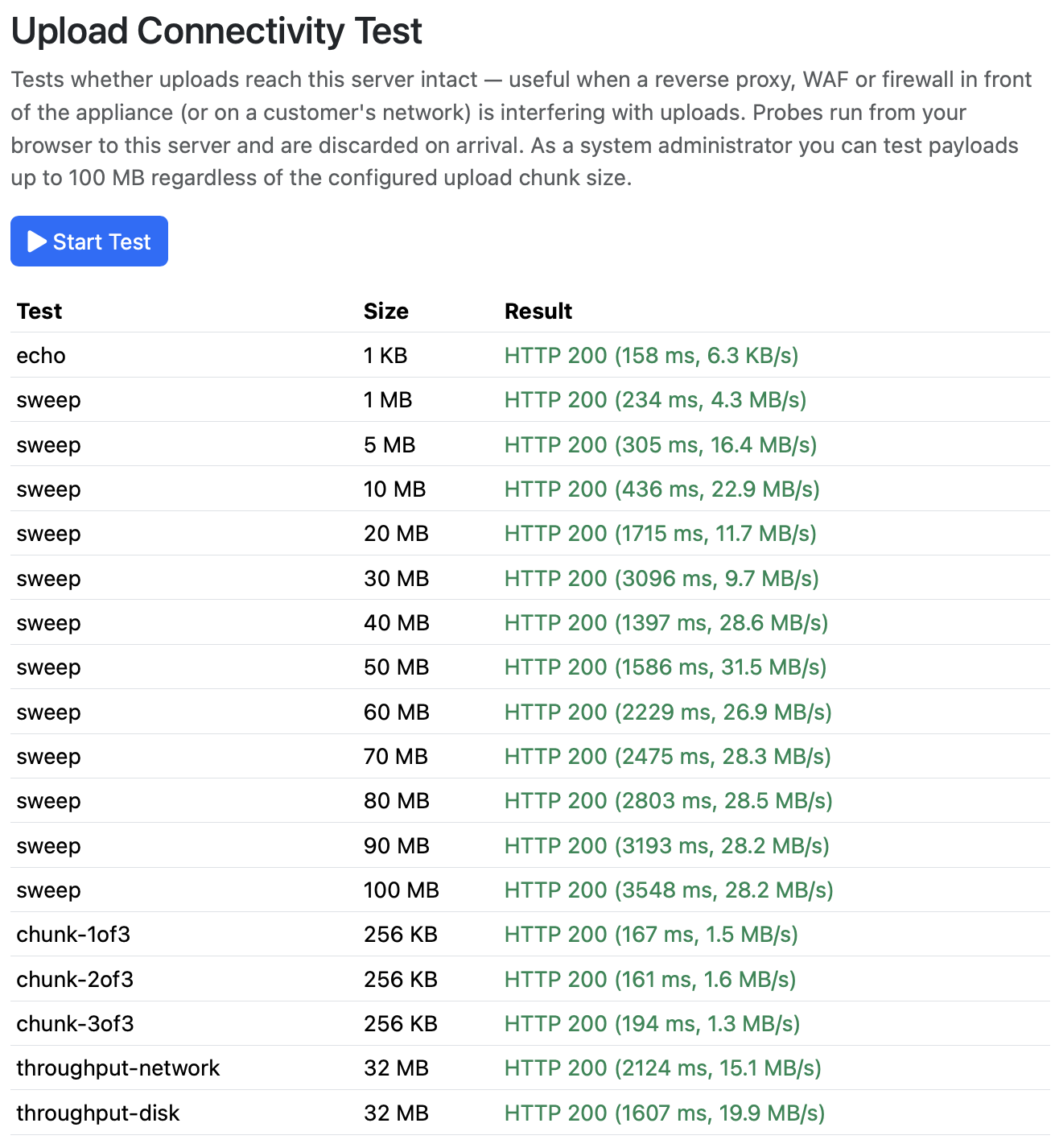
The test payloads contain no real data (they are all zeros) and are discarded as they arrive. Nothing is stored, no message or file is created, and the test does not count towards any quota.
Running the Test
Log in as a Sysadmin, go to Admin → System → Upload Test and click Start Test. Each test is added to the table as it runs, and you can stop a run at any time with Cancel. A complete run uploads a little over 600 MB in total, so it takes well under a minute on a fast local network and several minutes on a slow link.
What the Test Sends
| Test | Size | Purpose |
|---|---|---|
| echo | 1 KB | A minimal upload request built the same way as a real upload. Checks that upload requests reach LiquidFiles at all. |
| sweep | 1, 5, 10, 20 … 90 MB, then the largest permitted size | Finds request size limits. The sweep stops at the first size that fails, as every larger size would fail the same way. |
| chunk-1of3 to chunk-3of3 | 3 × 256 KB | A small three-part upload using the same parameters as a real chunked upload, to check that multi-part uploads pass through unaltered. |
| throughput-network | 32 MB | Upload speed over the network only — the payload is received and discarded. |
| throughput-disk | 32 MB | The same payload again, this time written to the LiquidFiles upload storage and then deleted, so you can compare network speed with disk write speed. |
When a Sysadmin runs the test, the sweep goes all the way to 100 MB regardless of the configured Upload Chunk Size. This lets you verify that a proxy or WAF passes requests of a given size before you change the chunk size in LiquidFiles. The two throughput tests only run on the Sysadmin page.
Reading the Results
Each row shows the result in green when the payload arrived complete, and in red when it didn't.
| Result | What it means |
|---|---|
| HTTP 200 (436 ms, 22.9 MB/s) | The payload reached LiquidFiles and the number of bytes received matches the number sent. The time is for the complete request and the speed is the payload size divided by that time. |
| HTTP 413 (95 ms) | Request too large. A proxy, CDN or WAF in the path has a request size limit lower than the size tested. The last size that passed and the first that failed tell you where the limit is. |
| Other HTTP 4xx or 5xx | Something answered with an error. 403 is typically a WAF or security policy rejecting the request, 502 and 504 a proxy that gave up on the connection to LiquidFiles. 429 comes from LiquidFiles itself and means that too many tests have been run from your IP address — wait ten minutes and try again. |
| Network error (blocked before reaching the server) | The browser got no HTTP response at all: the connection was refused, reset or dropped. This points at a firewall, a proxy or a TLS inspection device cutting the connection. |
| Timeout (no response) | No response within two minutes. Either the link is too slow to upload that size in time, or a device in the path is holding the request without forwarding it. |
| HTTP 200 (…) - byte mismatch | The request arrived, but LiquidFiles received a different number of bytes than the browser sent. Something in the path is truncating or rewriting uploads. |
A few things to keep in mind when reading the speeds:
- Speeds are in megabytes per second (MB/s), not megabits. Multiply by 8 to compare with a line speed: 25 MB/s is 200 megabits per second.
- Ignore the speed of the small tests. Every request has a fixed overhead of a tenth of a second or so, which is why the 1 KB echo test in the screenshot above shows 6.3 KB/s on a connection that uploads 28 MB/s. The larger sweep sizes and the throughput tests give the realistic figure.
- Speeds vary from one test to the next with whatever else is using the connection. Look at the overall level rather than at any single row.
- Compare throughput-network with throughput-disk. If they are similar, the network is what limits upload speed. If the disk test is considerably slower, the storage LiquidFiles writes uploads to is the bottleneck.
If every test passes at a good speed from the network where users have problems, the network path is not what is stopping their uploads.
Testing from a User's Network
Upload problems are often specific to one organization's network — their outgoing proxy or firewall rather than anything in front of your LiquidFiles system. To test from there, use the Shareable test links section on the same page. Optionally enter a label such as the customer name or a ticket reference, and click Generate Link. You will get a link that looks like this:
https://liquidfiles.example.com/upload_test/aB3d-Xk9p-Qm2r
Send the link to the user. They open it in the browser they normally use, click Start Test, and when it finishes click Copy Report and send the report back to you. They don't need an account and don't need to log in.
A test run from a link differs from the Sysadmin test in two ways:
- The sweep stops at the configured Upload Chunk Size instead of 100 MB, as that is the largest request a real upload will send. If every test passes, real uploads will fit through that network.
- The throughput tests are left out, so a link can never be used to write to the system's disk.
Links are listed on the page with who created them and when they expire. A link is valid for 7 days and can be used any number of times until then. Click Revoke to disable a link earlier; anyone opening a revoked or expired link gets a page asking them to request a new one. Links are not kept across a system restart, so if a link stops working sooner than expected, generate a new one.
The Diagnostic Report
When a run finishes, a Diagnostic Report appears below the table. It is plain text meant to be copied into an email or a support ticket, and it contains more detail than the table: the browser used, how many bytes LiquidFiles received for each test, any redirect the request was sent to, response headers that identify proxies and CDNs, and the beginning of the error page for a test that failed. This is an example from a network where a proxy limits requests to less than 50 MB:
LiquidFiles Upload Connectivity Diagnostic
Generated: 2026-11-12T03:14:07.512Z
Page: https://liquidfiles.example.com/upload_test/aB3d-Xk9p-Qm2r
Browser: Mozilla/5.0 (Windows NT 10.0; Win64; x64; rv:144.0) Gecko/20100101 Firefox/144.0
Size ceiling: 100 MB

[echo] sent 1 KB -> HTTP 200 in 142 ms (7 KB/s), server received 1 KB (match)
[sweep] sent 1 MB -> HTTP 200 in 310 ms (3.2 MB/s), server received 1 MB (match)
[sweep] sent 5 MB -> HTTP 200 in 520 ms (9.6 MB/s), server received 5 MB (match)
[sweep] sent 10 MB -> HTTP 200 in 890 ms (11.2 MB/s), server received 10 MB (match)
[sweep] sent 20 MB -> HTTP 200 in 1750 ms (11.4 MB/s), server received 20 MB (match)
[sweep] sent 30 MB -> HTTP 200 in 2610 ms (11.5 MB/s), server received 30 MB (match)
[sweep] sent 40 MB -> HTTP 200 in 3480 ms (11.5 MB/s), server received 40 MB (match)
[sweep] sent 50 MB -> HTTP 413 in 95 ms
  response headers: server: nginx
  response body: <html> <head><title>413 Request Entity Too Large</title></head> <body> ...
[chunk-1of3] sent 256 KB -> HTTP 200 in 160 ms (1.6 MB/s), server received 256 KB (match)
[chunk-2of3] sent 256 KB -> HTTP 200 in 170 ms (1.5 MB/s), server received 256 KB (match)
[chunk-3of3] sent 256 KB -> HTTP 200 in 160 ms (1.6 MB/s), server received 256 KB (match)

Largest successful upload: 40 MB
Uploads succeed up to 40 MB but fail at 50 MB (HTTP 413) - this usually indicates a request body size
limit on a proxy or WAF between the client and the server (e.g. nginx client_max_body_size).
The last lines summarize what the run found. In this example the error page and the server: nginx header don't come from LiquidFiles — they show that an nginx proxy answered the 50 MB request itself, which is the device whose configuration needs to change.
If you need help interpreting a result, send the complete report to support@liquidfiles.com.
Fixing Common Causes
Uploads pass up to a certain size and fail above it
A device in the path limits how large a single request can be. LiquidFiles uploads large files in chunks of 100 MB by default, so any limit below that breaks uploads of files larger than the limit while smaller files work. There are two ways to fix it:
- Raise the request size limit on the proxy, CDN or WAF to at least the chunk size (in nginx this is client_max_body_size). Run the test again as a Sysadmin to confirm that all sizes up to 100 MB now pass.
- Lower the chunk size in LiquidFiles to below the limit, in Admin → Configuration → Settings → Advanced → Upload Chunk Size. It can be set anywhere between 10 and 100 MB. If the test passed at 40 MB and failed at 50 MB, set it to 40. This does not limit how large files users can send, only how many pieces each file is split into during upload.
Lowering the chunk size is the only option when the limit is somewhere you don't control, such as a CDN with a fixed request limit or the networks of external users.
Network errors or timeouts
When tests fail without any HTTP response, a device is dropping the connection rather than rejecting the request. Uploads are sent as HTTPS POST requests with the content type application/octet-stream, which some WAFs, intrusion prevention systems and TLS inspection proxies block or try to scan in full before forwarding. Exempt the LiquidFiles hostname from inspection on that device, or raise its size and time limits. If a failure only starts at a certain size, lowering the Upload Chunk Size as above will often work around it as well.
The test passes for you but fails for a user
If the test passes from outside your network but a test link fails for a particular user, the problem is in that user's network. Their IT department will need to permit the uploads, and the diagnostic report from their run is the best thing to send them.
Everything passes but the speed is low
If the throughput tests show that the network is the limit, see Testing Network Performance to measure the connection independently of LiquidFiles. If the disk test is the slow one, look at the performance of the storage the LiquidFiles data is located on.
Reverse proxy configuration
If LiquidFiles is behind a reverse proxy or CDN and the report shows that requests are being redirected, check that the Public URL, protocol and Trusted Proxies are set as described in Reverse Proxy Configuration.