
FileLinks Configuration
FileLink defaults, limits and permissions are configured on a per group basis. For each setting you typically control two things: the default value a new FileLink starts with, and whether users in the group can change it. When a user isn't permitted to change a setting, the corresponding control is hidden from the FileLink Settings panel.
Enabling FileLinks
FileLinks are only available to Local Users. To enable or disable the feature for a group, go to Admin → Groups, edit the group, and look in the Basic Settings tab under Features Enabled for this group. This is the same place all other features are enabled or disabled.
Group FileLink Settings
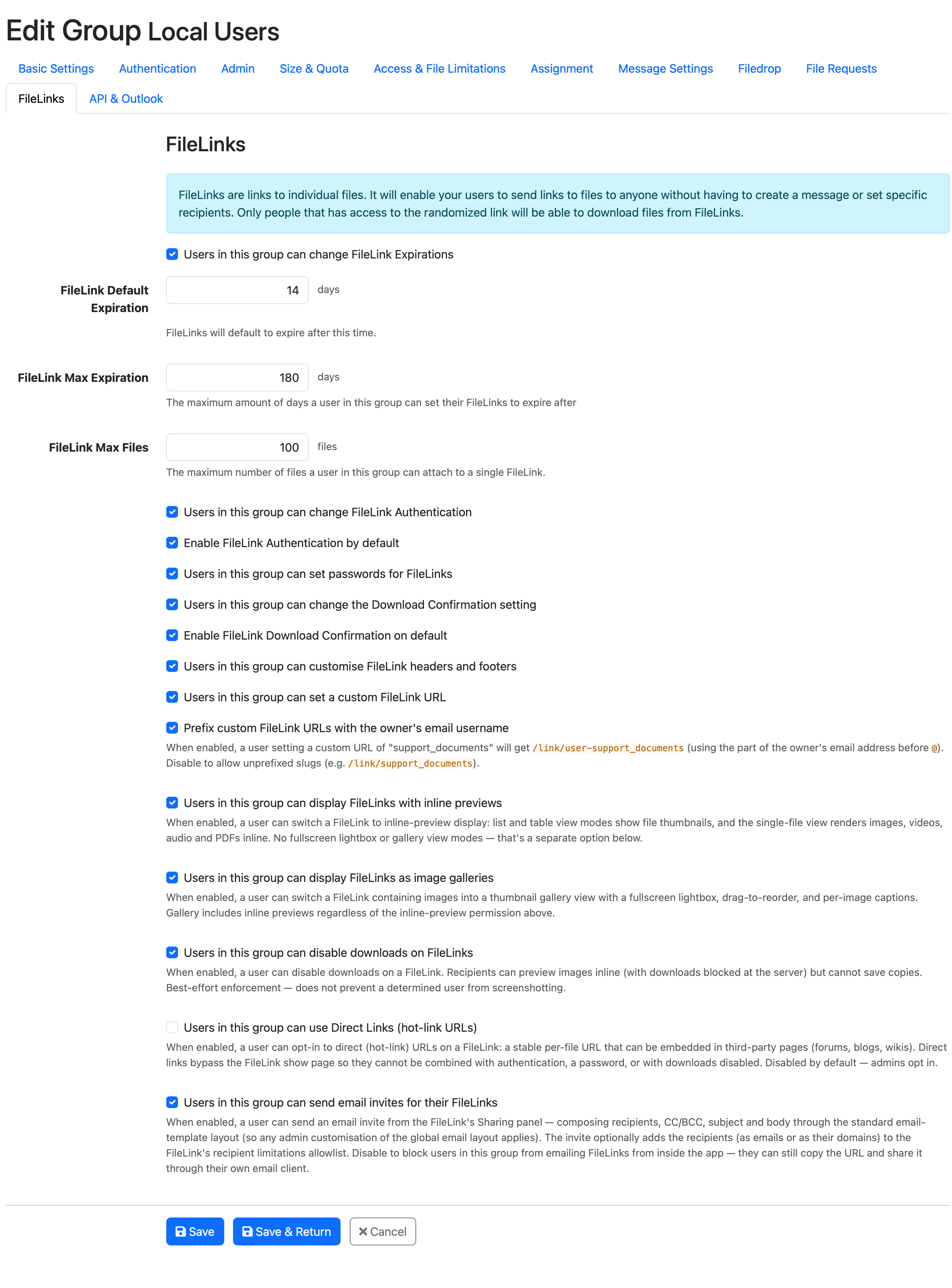
All of the FileLink-specific settings live in the group's FileLinks tab:
Expiration & Limits
FileLink Default Expiration
The number of days a new FileLink defaults to before it expires. The default is 14 days. If you uncheck "Users in this group can change FileLink Expirations", users can't change the expiry and every FileLink uses this value.
FileLink Max Expiration
The maximum number of days into the future a user in this group can set a FileLink to expire. The default is 180 days.
FileLink Max Files
The maximum number of files a user in this group can attach to a single FileLink. The default is 100 files.
Authentication & Passwords
- Users in this group can change FileLink Authentication — whether the Require Authentication toggle is shown to users.
- Enable FileLink Authentication by default — the default state of Require Authentication on new FileLinks.
- Users in this group can set passwords for FileLinks — whether the Password controls are shown to users.
See Access & Security for what these controls do on a FileLink.
Download Confirmation
"Download Confirmation" is the group-level name for the Send Download Receipts notification on a FileLink.
- Users in this group can change the Download Confirmation setting — whether users can toggle download receipts on their FileLinks.
- Enable FileLink Download Confirmation on default — the default state of Send Download Receipts on new FileLinks.
Headers & Footers
Users in this group can customise FileLink headers and footers controls whether the Edit Header and Edit Footer editors are available on the FileLink page.
Custom URLs
- Users in this group can set a custom FileLink URL — whether the Custom URL field is shown.
- Prefix custom FileLink URLs with the owner's email username — when enabled, a custom URL of support_documents set by user@example.com becomes /link/user-support_documents. Disable to allow unprefixed slugs such as /link/support_documents.
See Custom URLs for the full behaviour.
Display Modes
- Users in this group can display FileLinks with inline previews — enables Inline display mode, where list and table views show thumbnails and the single-file view renders images, videos, audio and PDFs inline.
- Users in this group can display FileLinks as image galleries — enables Gallery display mode, with a thumbnail grid, fullscreen lightbox, drag-to-reorder and per-image captions. Gallery includes inline previews regardless of the inline-preview permission.
The Icons display mode is always available. See Display Modes for what each mode looks like.
Disabling Downloads
Users in this group can disable downloads on FileLinks lets users turn off the Allow Downloads toggle, so recipients can preview files inline but cannot save copies. This is best-effort enforcement and does not prevent screenshotting.
Direct Links
Users in this group can use Direct Links (hot-link URLs) lets users opt in to stable per-file URLs that can be embedded in third-party pages. This is disabled by default — administrators opt in. Direct links bypass the FileLink page, so they cannot be combined with authentication, a password, or disabled downloads. See Direct Links for details.
Email Invites
Users in this group can send email invites for their FileLinks controls whether the Send Email Invite button appears in the FileLink's Sharing panel. Invites are sent through your system's standard email-template layout, so any customisation of the global email layout applies. Disabling this blocks users from emailing FileLinks from inside LiquidFiles; they can still copy the URL and share it through their own email client.
Managing FileLinks
Administrators can review every FileLink on the system under Admin → FileLinks. The list shows the FileLink ID, owner, file details, creation and expiry dates, download counts and status (Active or Expired). From here you can:
- open a FileLink's recipient-facing page (via its ID),
- view its Download Log and, for domain admins, its Activity Log,
- delete a FileLink, and
- export the list to CSV, either the visible page or by a chosen time range.