
Sharing Files & Folders with LiquidFiles
Often it's convenient to setup a place where you can share Files and Folders, for instance when working with a project and multiple people are contributing to the same project. Or just provide a convenient location to share organisation documentation such as documentation, marketing materials, logo's and similar where only the marketing department can write to, and the entire organization can read the files.
Specific Features regarding File and Folder sharing in LiquidFiles includes:
- Intuitive interface working exactly as expected — no manual needed.
- User and Group based access restrictions.
- Ability to upload Folders directly in supported browsers (i.e. Chrome).
- Ability to save as many revisions of each file as you need.
- Zip-download the current folder including sub-folders.
- Activity logs shows changes in the Share.
- Ability to send Notifications about changes.
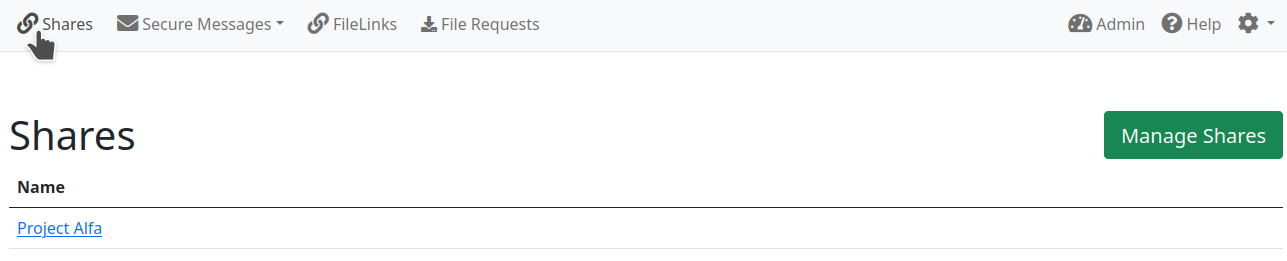
If a user has configured access to some Shares then Shares button is displayed on the top bar on the left of the web interface.
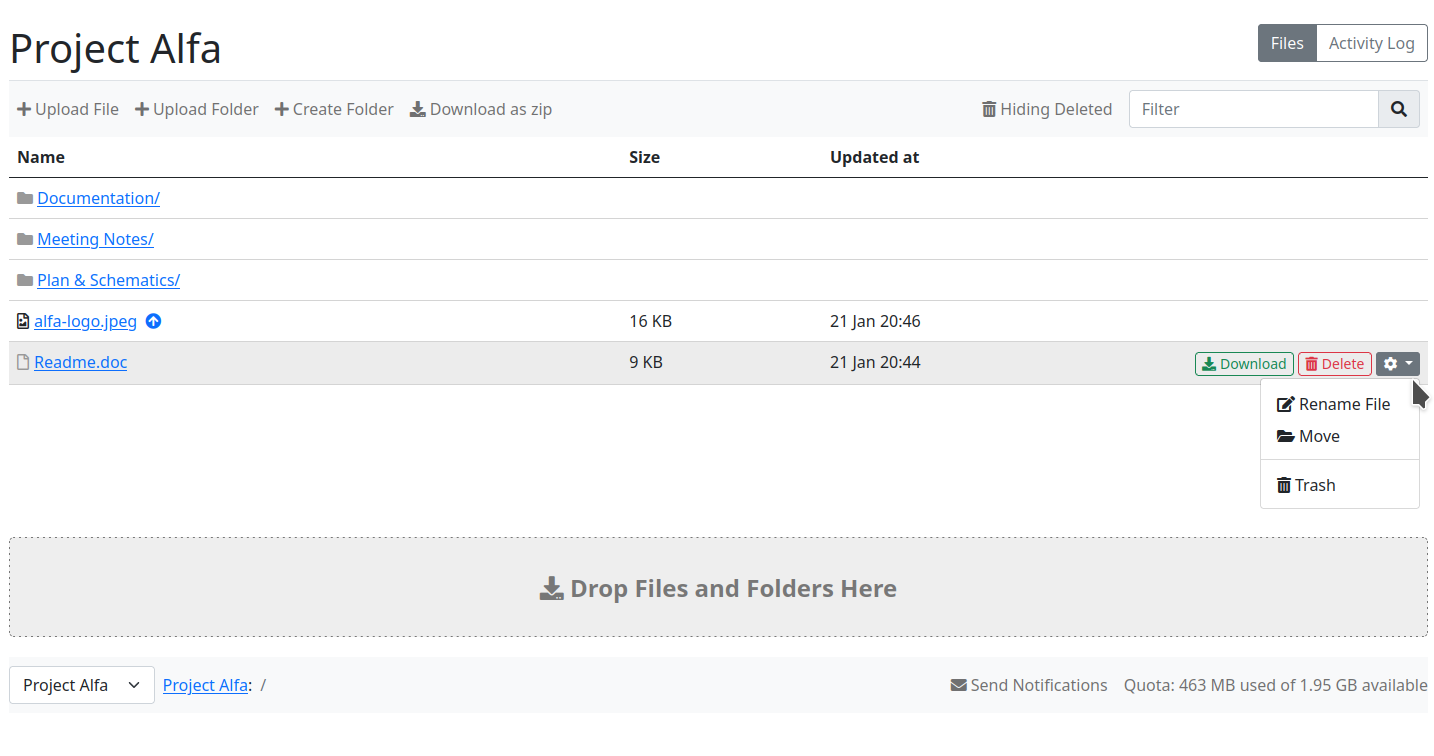
Clicking on particular Share, as you can see in the screenshot below, is displayed the File and Folder Sharing interface which looks exactly as you expect from this functionality.
Share Configuration
Adding a new Share and administration of existing Shares you can see in the Share Configuration Documentation.
Windows Path Length Limitation
Windows limits the full path of a file (drive letter + folders + file name) to 259 characters. When a Windows user uploads a folder from a location with a long path, any files deeper in the folder structure that would exceed this limit are silently excluded by Windows before the upload reaches LiquidFiles. This can look like an incomplete upload or a duplicated folder, and because the excluded files never reach the server, LiquidFiles cannot detect or warn about the specific files affected.
To help with this, Windows users with upload access to a Share will see a Path Limit Warning link (with a warning icon) in the folder action bar. Clicking it opens a dialog explaining the limit and the recommended workarounds:
- Map a virtual drive closer to the files, e.g. run
subst X: "C:\your\long\path\to\folder"in Command Prompt and upload fromX:\. - Browse closer to the files — select a subfolder nearer the files as the upload folder rather than a deeply nested parent.
- Use a shorter path — copy the files to a short location such as
C:\uploads\before uploading. - Zip the folder first and upload the ZIP file instead.
Windows 10 (version 1607) and later can also enable long-path support via the
LongPathsEnabled registry value, though browser support for long paths
varies, so the workarounds above are more reliable. The notice is shown only to Windows
users on Shares they can upload to; it does not appear on macOS or Linux, in read-only
Shares, or for File Requests and secure Messages.