
Relay Outgoing Emails with Microsoft 365
While it's possible to get email relaying working with Microsoft 365, we generally recommend using a dedicated email relay service like Amazon SES or SMTP2Go instead. With dedicated relay services, you can verify your domains so all your users can send messages with their own email addresses, which looks a lot nicer for the end recipient. Microsoft 365 requires all outgoing emails to be sent from a single Office 365 email address.
Overview
Starting with LiquidFiles v4.3, Microsoft 365 email relay uses OAuth2 authentication with Device Code Flow. This replaces the previous SMTP Auth basic authentication method that Microsoft has been deprecating.
The configuration is available in Admin → Configuration → Email, under the Office 365 tab.
Microsoft Entra App Registration
Before configuring LiquidFiles, you need to register an application in Microsoft Entra (Azure AD):
- Register a new application in Microsoft Entra. We suggest naming it yourhostname-relay (replacing yourhostname with your LiquidFiles hostname).
- The application requires the SMTP.Send delegated permission.
- Allow public client flows must be enabled in the application settings.
LiquidFiles Configuration
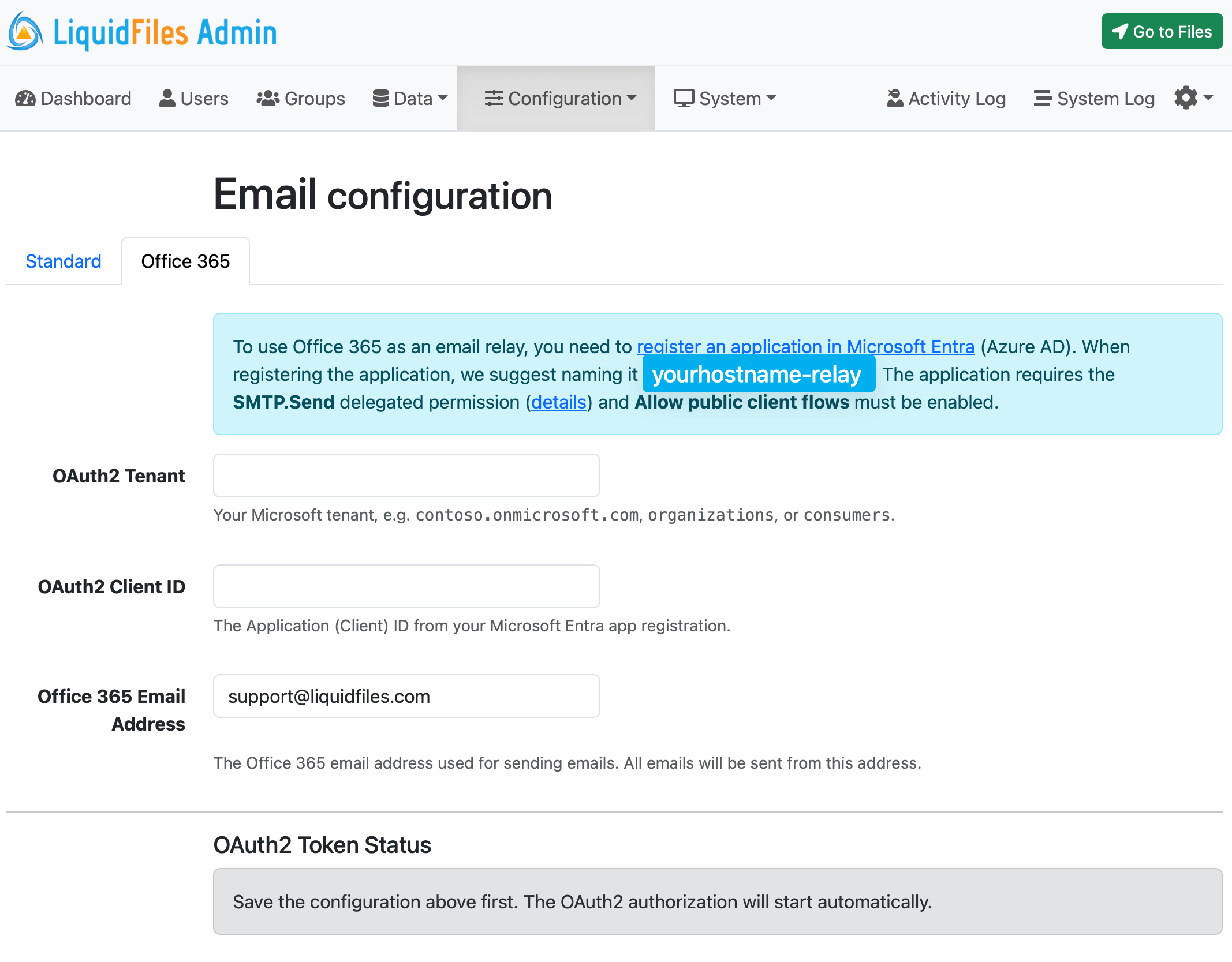
Navigate to Admin → Configuration → Email, and select the Office 365 tab. Configure the following fields:
- OAuth2 Tenant
- Your Microsoft tenant, e.g. contoso.onmicrosoft.com, organizations, or consumers.
- OAuth2 Client ID
- The Application (Client) ID from your Microsoft Entra app registration.
- Office 365 Email Address
- The Office 365 email address used for sending emails. All emails will be sent from this address.
Authorization
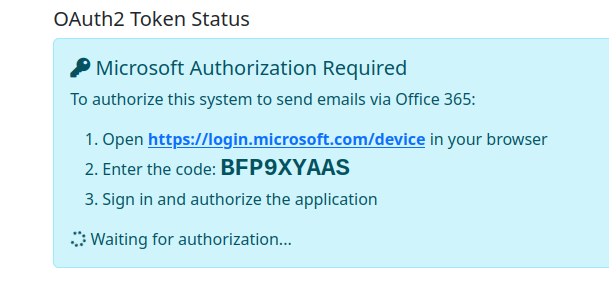
After saving the configuration, the OAuth2 authorization will start automatically using the Device Code Flow. LiquidFiles will display an OAuth2 Token Status panel with a device code and step-by-step instructions:
- Open https://login.microsoft.com/device in your browser.
- Enter the code shown in the OAuth2 Token Status panel.
- Sign in and authorize the application using the Microsoft 365 account that matches the configured Office 365 Email Address.
The panel will update automatically once authorization is complete.
SMTP Auth (Legacy)
Prior to LiquidFiles v4.3, Microsoft 365 email relay used SMTP Auth with basic authentication. Microsoft has announced that they will disable SMTP Auth Basic Authentication by default at the end of December 2026, with final removal announced in the second half of 2027. Please see the updated announcement from Microsoft for more information.
If you are running LiquidFiles v4.2 or earlier and using Microsoft 365 as your email relay, we recommend upgrading to v4.3 to use the new OAuth2 authentication, or switching to a dedicated email relay service such as Amazon SES or SMTP2Go.