
FileLinks Custom URLs
By default a FileLink uses a randomized, unguessable URL such as https://liquidfiles.company.com/link/HexCA9829L7lcFl2eMCcAh. A Custom URL lets you replace that random string with something readable and memorable, for example https://liquidfiles.company.com/link/liquidfiles-eula.
This is useful when you want to share a link verbally, print it, or reference it from a wiki or email signature where a human-friendly URL matters.
Setting a Custom URL
In the FileLink Settings panel, find the Custom URL field in the Sharing section, type your desired URL and click the save icon.
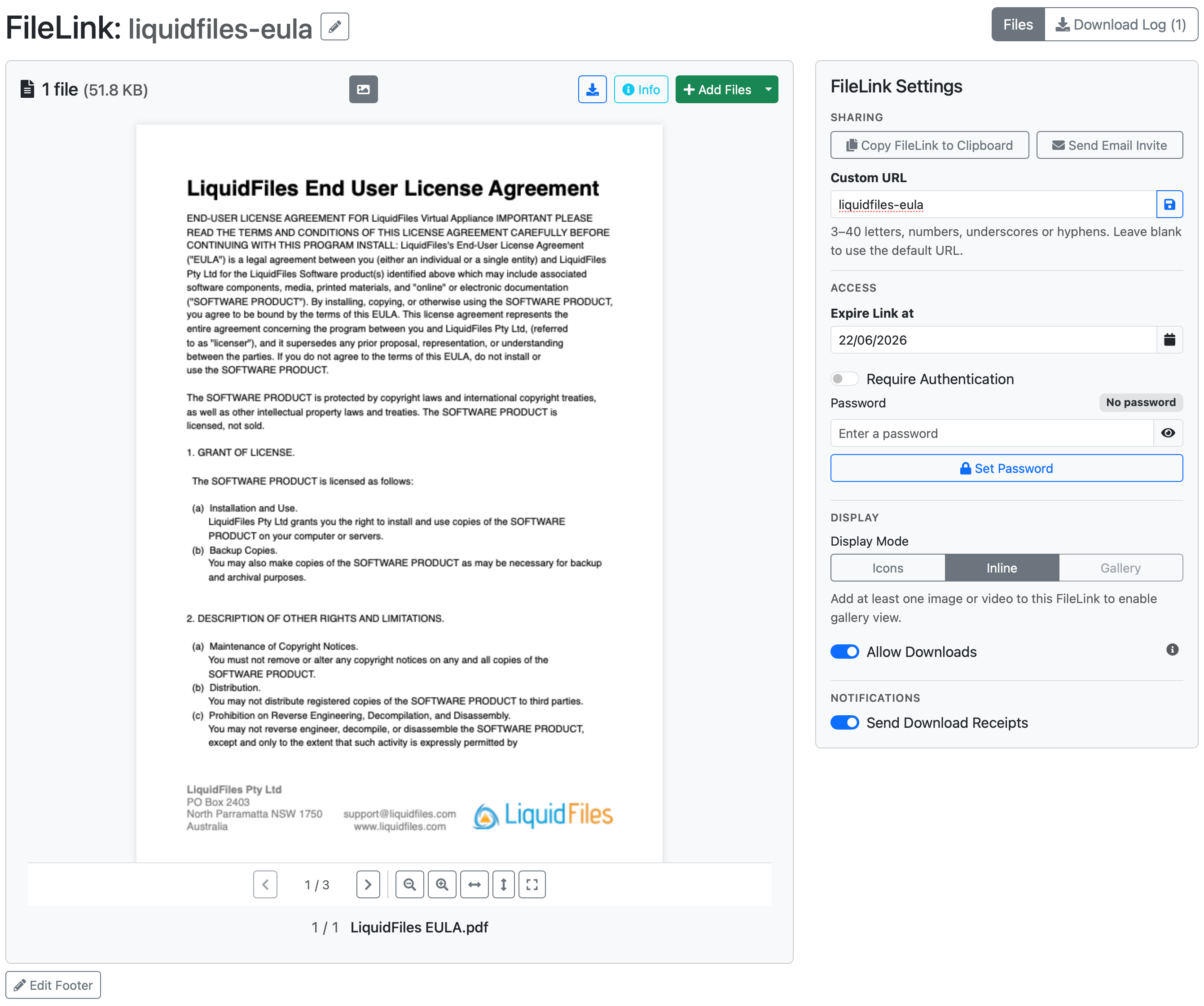
Leave the field blank to clear the custom URL and revert to the default randomized link. The original randomized URL continues to work even after a custom URL is set.
URL Rules
A custom URL must be:
- between 3 and 40 characters,
- made up of letters, numbers, underscores or hyphens only,
- unique on your LiquidFiles system, and
- not one of a small set of reserved words (such as download, edit, new or show).
If the URL you choose is already in use or uses a reserved word, LiquidFiles tells you so you can pick another.
Email Username Prefix
Administrators can choose to automatically prefix every custom URL with the owner's email username (the part of their email address before the @). This keeps each user's custom URLs in their own namespace and avoids collisions between users who pick the same word.
When this is enabled and a user named shannon.barrows@company.com sets a custom URL of support_documents, the stored URL becomes shannon.barrows-support_documents and the field shows the fixed prefix to the left of the input:
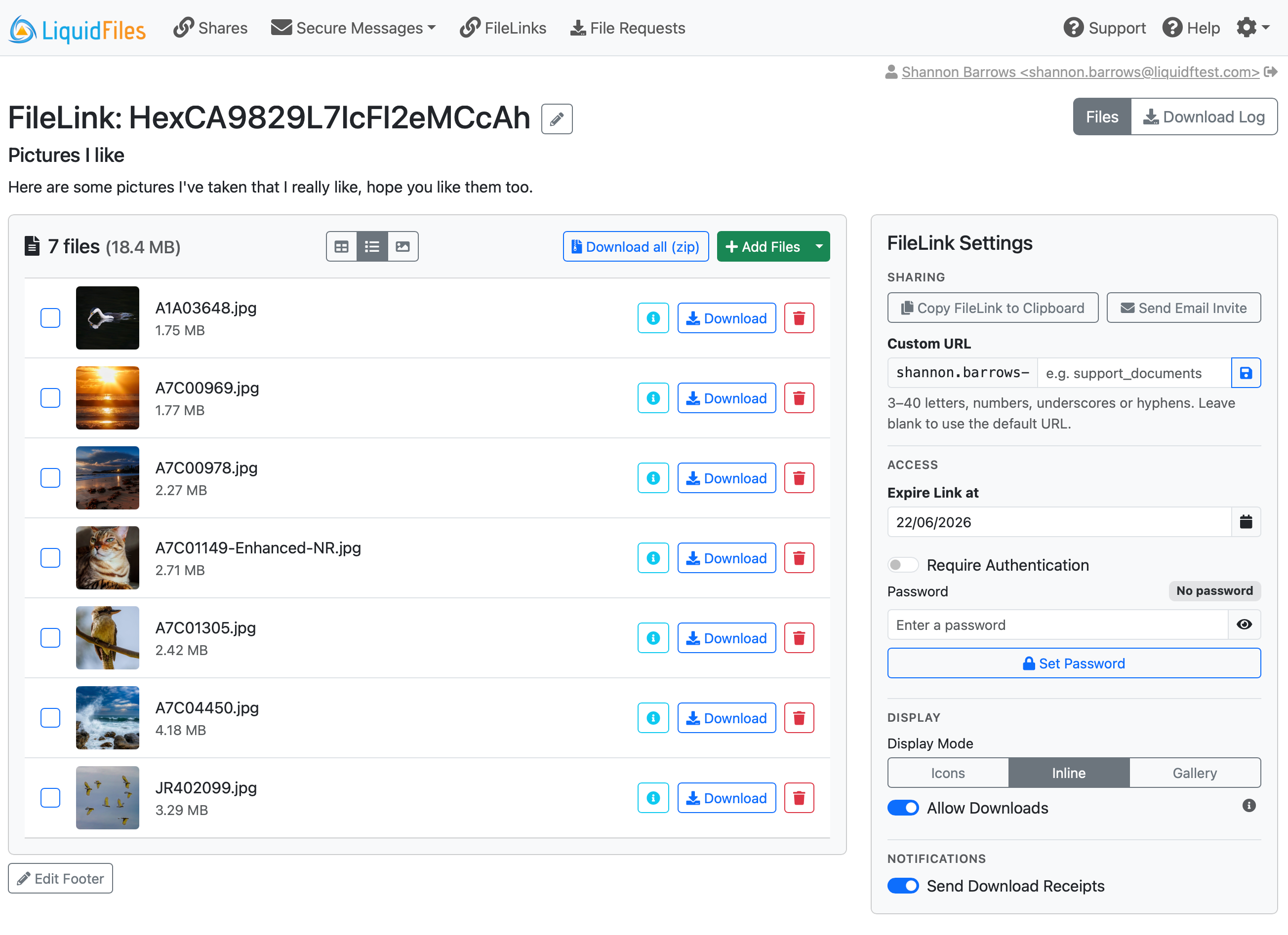
When the prefix is disabled, users can set unprefixed URLs such as support_documents. The prefix is applied at the moment you save the URL, so changing the group setting later does not rewrite existing FileLinks — their URLs stay stable.
Whether the email-username prefix is used, and whether users can set custom URLs at all, is configured per group. See the FileLinks Configuration documentation.
What Recipients See
When a custom URL is set, it is what appears in the recipient's address bar and on the FileLink page heading:

Notes
- A custom URL changes the address only — it does not change any access controls. A FileLink with a friendly URL is exactly as secure as its access settings make it.
- The original randomized URL keeps working, so links you've already shared won't break when you add a custom URL.