
FileLinks Access & Security
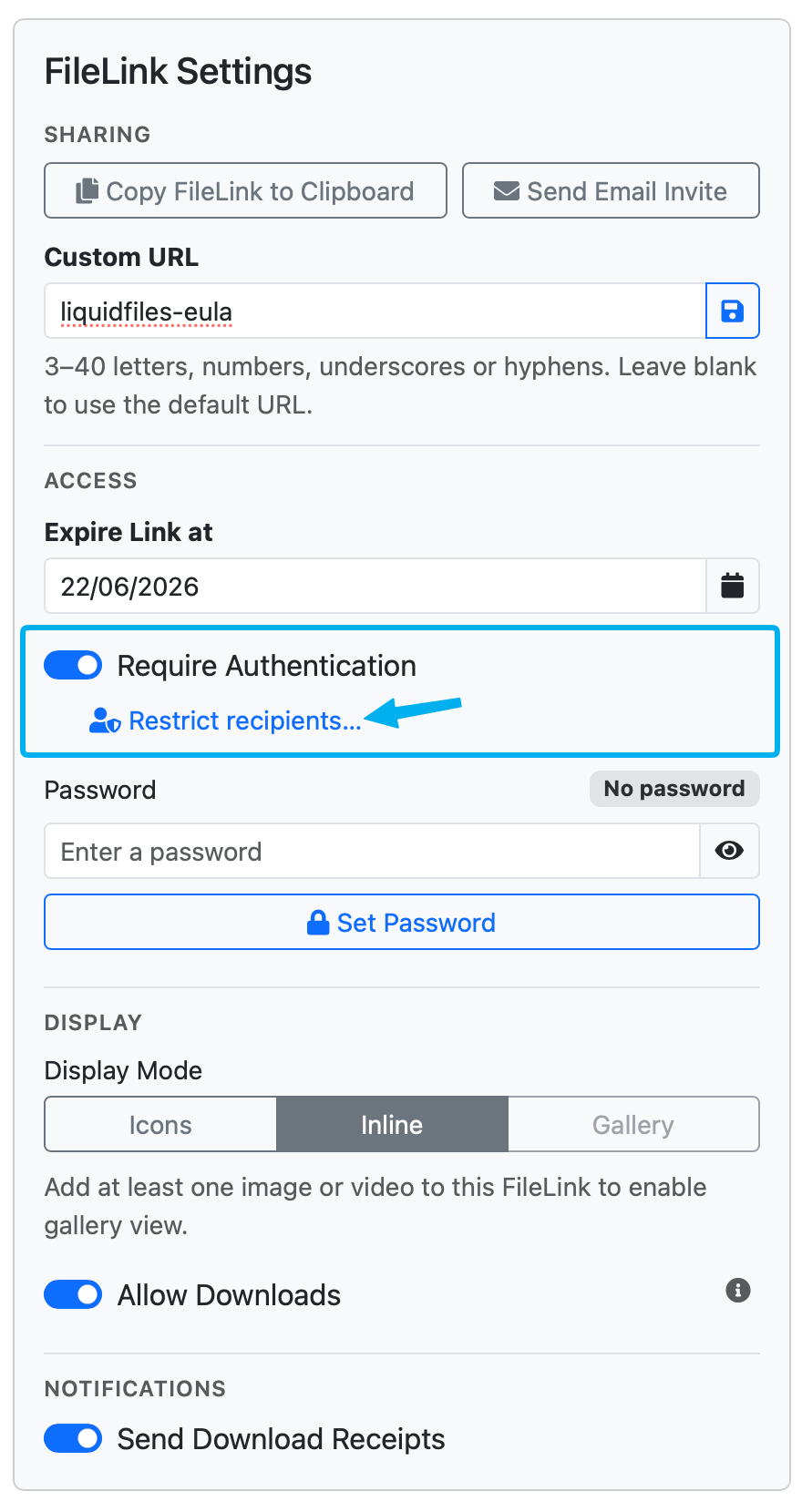
By default a FileLink is protected by its randomized URL — only people who have been given the link can open it. On top of that, the Access section of the FileLink Settings panel lets the owner add further controls: an expiry date, required authentication, a recipient allowlist and a password.
Expiry Date
Every FileLink has an Expire Link at date. After this date the link stops working and recipients see an "Invalid FileLink" message. New FileLinks default to the group's FileLink Default Expiration, and users can set any date up to the group's FileLink Max Expiration.
Require Authentication
When Require Authentication is enabled, recipients must verify their identity before they can open the FileLink. This does two things: it ensures only authenticated people can access the files, and it lets LiquidFiles record who accessed them — so the Download Log and download receipts can show real email addresses.
Without authentication, anyone with the link can open it and LiquidFiles cannot identify them.
The FileLink owner always has access to their own FileLinks and is never challenged.
Recipient Limitations
When authentication is required, you can additionally restrict which authenticated people are allowed in. Click Restrict recipients… beneath the Require Authentication toggle to open the Recipient Limitations editor.
The editor takes one entry per line. Each entry is either a full email address or a bare domain:
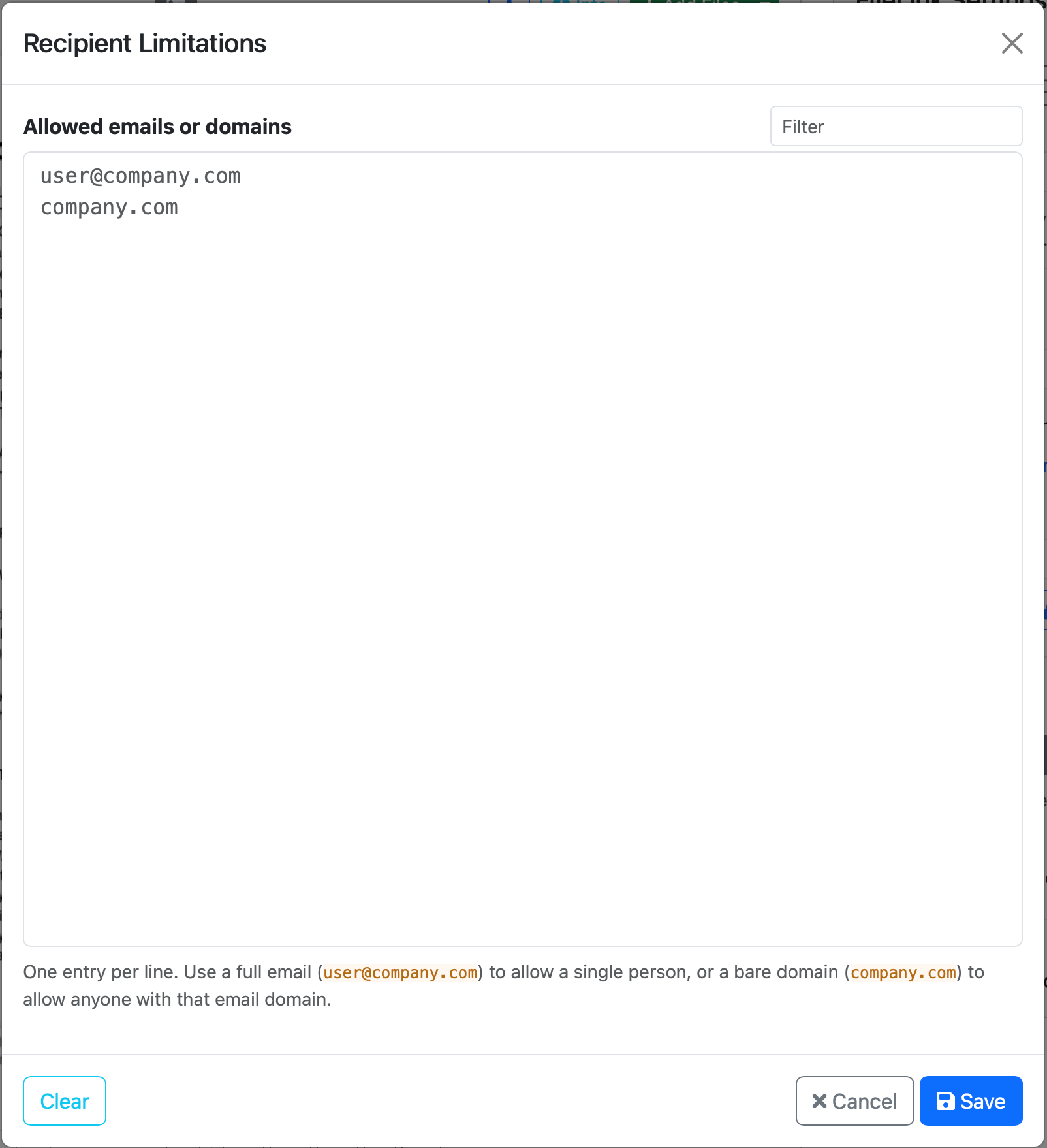
- A full email such as user@company.com allows that one specific person.
- A bare domain such as company.com allows anyone with an email address at that domain.
An authenticated visitor whose email (and email domain) isn't on the list is shown an "Access Not Permitted" page. An empty list means no restriction — any authenticated visitor can access the FileLink.
When you use Send Email Invite, you can have the invited recipients (or their domains) added to this allowlist automatically.
Password
You can set a Password on a FileLink. Recipients are then prompted for the password before the files are shown. The status pill next to the Password label indicates whether a password is currently set. Submitting an empty password removes it.
A password can be combined with authentication, or used on its own as a lighter-weight gate when you don't need to identify each recipient.
Allow Downloads
The Allow Downloads toggle in the Display section controls whether recipients can save copies of the files. When turned off, recipients can still preview images, videos and PDFs inline (in Inline or Gallery display mode) but the download buttons are removed and downloads are blocked at the server.
Direct Links
A Direct Link (hot-link URL) is a stable, per-file URL that points straight at a single file's bytes, suitable for embedding in third-party pages such as forums, blogs and wikis. Direct links bypass the FileLink page entirely.
Because they bypass the FileLink page, direct links are incompatible with the page-level access controls. A FileLink with direct links enabled cannot at the same time:
- require authentication,
- have a password set, or
- have downloads disabled.
If any of those are active, the direct-links option is unavailable until they're cleared, and enabling direct links on a FileLink that has them will prompt you to clear the conflicting settings first. Direct links are disabled by default and must be enabled per group by an administrator — see Configuration.
Download Receipts
In the Notifications section, Send Download Receipts controls whether the FileLink owner is emailed when a recipient views or downloads a file. With authentication enabled, these receipts include the recipient's email address; without authentication they record the event but cannot identify the visitor. Every view and download is also recorded in the FileLink's Download Log regardless of this setting.