
FileLinks
A FileLink is a shareable link to one or more files hosted on your LiquidFiles system. It lets your users hand out a link to a set of files to anyone — without composing a message or specifying recipients up front. Only people who have the randomized link will be able to open it, and you can layer on additional access controls such as authentication, a password, an expiry date and a recipient allowlist.
A FileLink URL looks like https://liquidfiles.company.com/link/HexCA9829L7lcFl2eMCcAh where liquidfiles.company.com is your LiquidFiles system and the random string is the FileLink's secure ID. You can also give a FileLink a friendlier Custom URL like https://liquidfiles.company.com/link/liquidfiles-eula.
Use Cases
- Publishing a document, image set or video where you don't know in advance who will need it.
- Sharing a gallery of images that recipients can browse in a fullscreen lightbox.
- Adding a stable link to a file in a wiki, intranet page or email signature.
- Hosting a file for embedding in a third-party page using a Direct Link.
- Providing a preview-only document where downloads are disabled.
Creating a FileLink
FileLinks are accessed from the FileLinks link in the Menubar. To create a new one, click New FileLink and either upload new files or, on the same page, pick from files you've previously sent. A single FileLink can hold many files up to the FileLink Max Files limit configured for your group.
Once created, you're taken to the FileLink page where you can add or remove files, adjust settings and share the link.
The FileLink Page
The FileLink page is the owner's control centre for a FileLink. The files are listed on the left and the FileLink Settings panel is on the right, grouped into Sharing, Access, Display and Notifications sections.
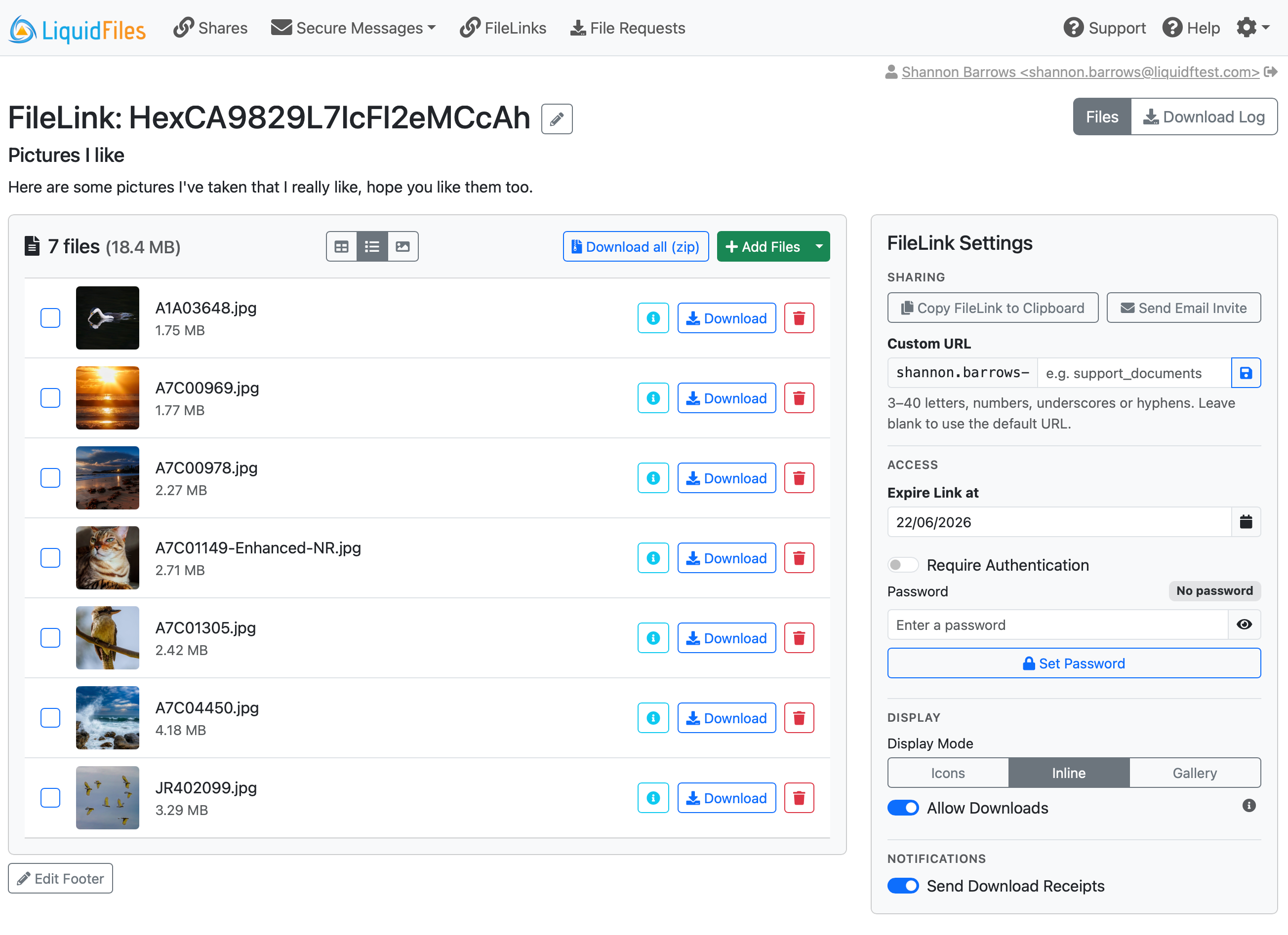
From here you can:
- Add files (upload new ones or re-use previously uploaded files), remove files, or download them individually or all together as a zip.
- Switch the display mode between Icons, Inline and Gallery.
- Set the expiry date, require authentication, set a password and restrict recipients.
- Set a Custom URL.
- Share the link via Copy to Clipboard or an Email Invite.
- Toggle whether download receipts are sent.
- Edit the page header and footer.
- Review the Download Log to see who has accessed and downloaded files.
Display Modes
The Display Mode controls how files are presented, both in the owner's view and on the recipient-facing page. There are three mutually-exclusive modes, each of which can be enabled or disabled per group (see Configuration).
Icons
Files are shown as generic file-type icons only. The single-file view shows the file type icon rather than the file contents. This is the most lightweight option and is always available.
Inline
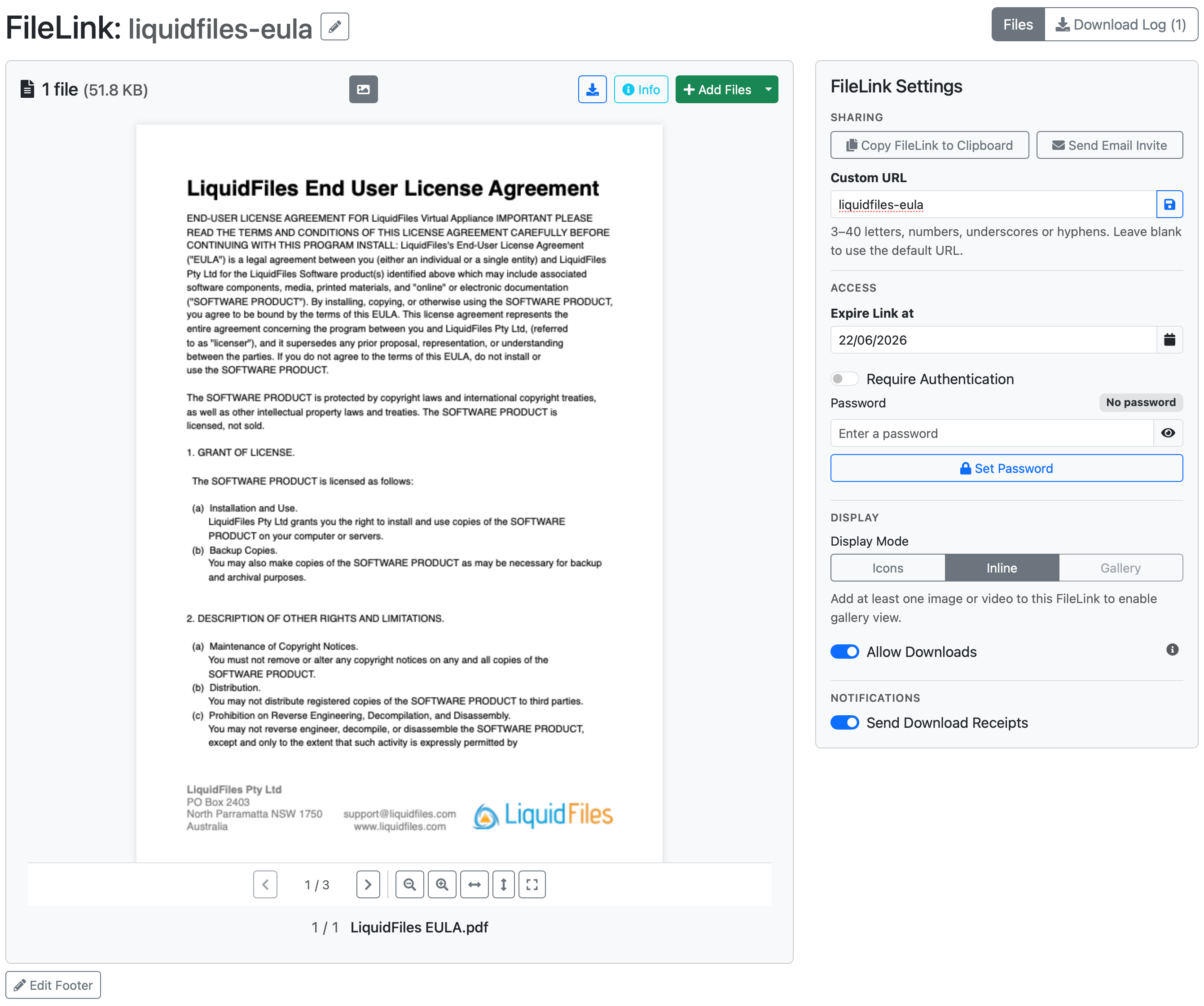
List and table views show file thumbnails, and the single-file view renders the actual content — images, videos, audio and PDFs are displayed inline directly in the page. PDFs use a built-in viewer with page navigation, zoom and fit controls.
Gallery
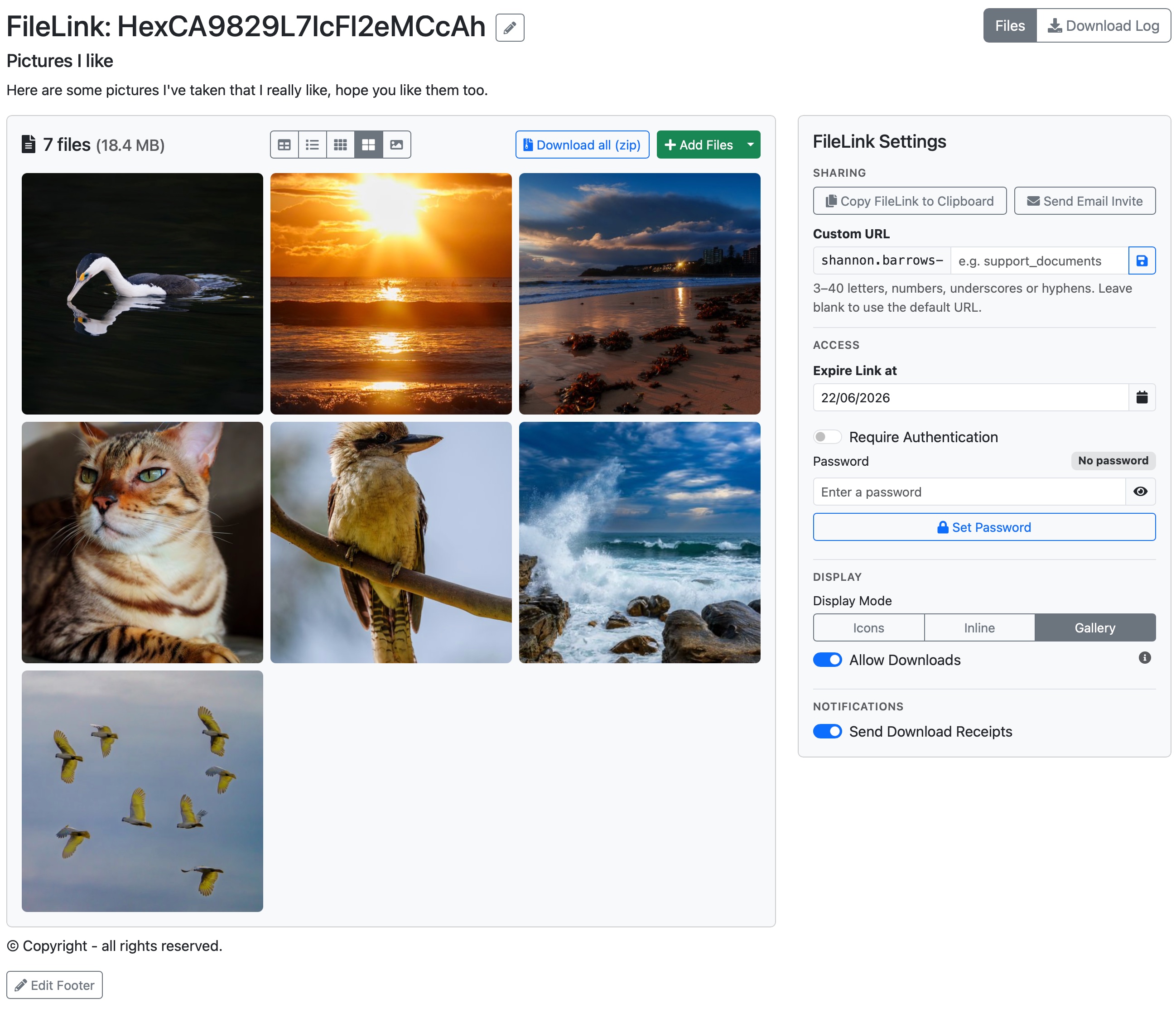
For FileLinks containing images or videos, Gallery mode presents a thumbnail grid with a fullscreen lightbox. Owners can drag to reorder images and add per-image captions. Gallery mode includes inline previews regardless of the inline-preview permission.
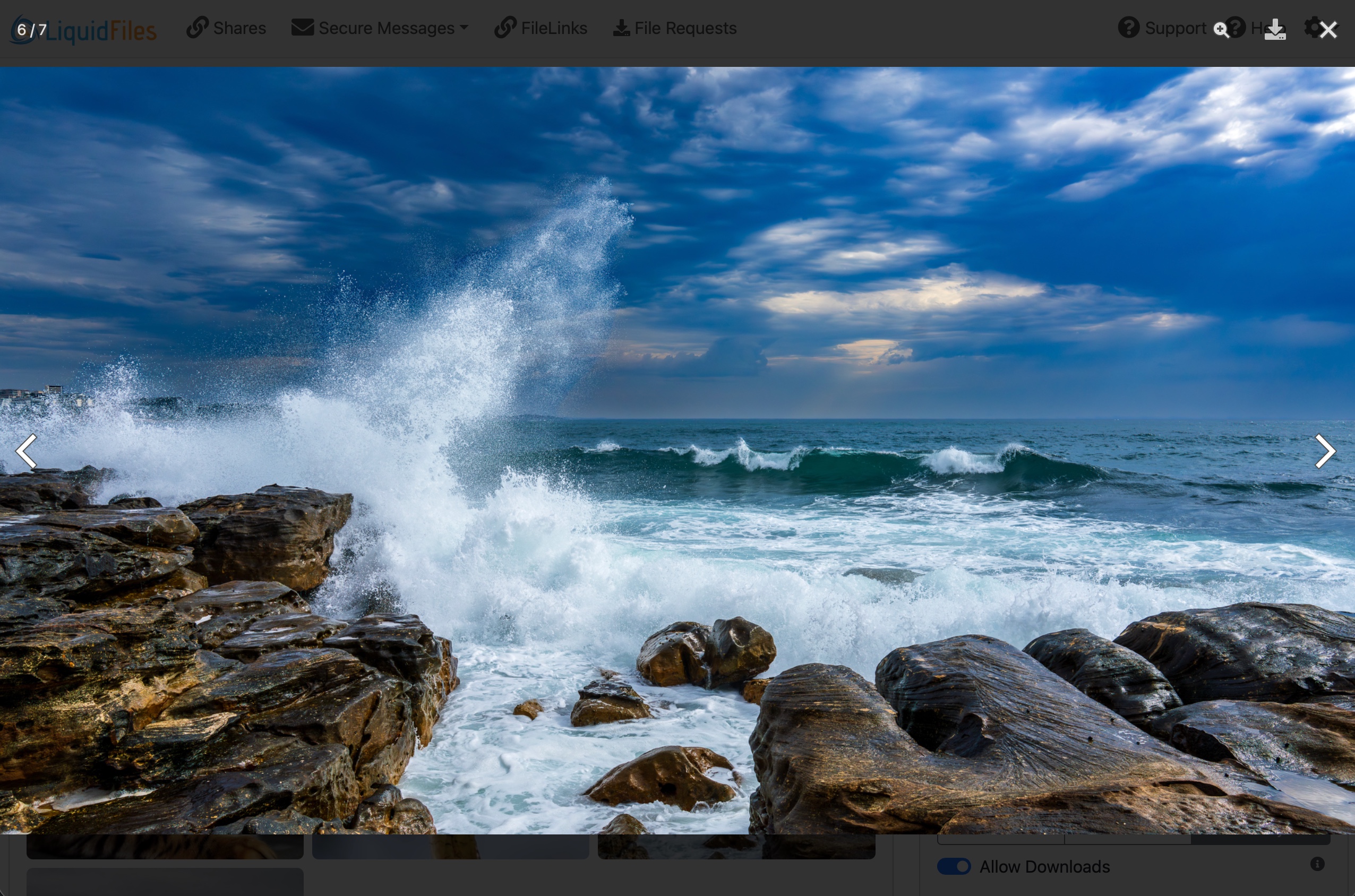
Clicking an image opens the fullscreen lightbox where recipients can step through the images and, if downloads are allowed, download each one:
Sharing a FileLink
The Sharing section at the top of the settings panel offers two ways to distribute the link:
- Copy FileLink to Clipboard — copies the URL so you can paste it into your own email, chat or document.
- Send Email Invite — composes and sends an email directly from LiquidFiles, using your system's standard email-template layout. You can set recipients, CC/BCC, subject and body, and optionally add the recipients (as emails or as their domains) to the FileLink's recipient limitations allowlist in the same step.
Whether the Email Invite button is available is controlled per group — see Configuration.
Header & Footer
The recipient-facing FileLink page shows a header (by default the FileLink label and ID) and an
optional footer. Owners can customise both using the Edit Header and
Edit Footer editors, which support variables such as
{{ link_id }}, {{ owner_name }}, {{ file_count }}
and {{ expires_at_human }} so the text can include dynamic values. This
is gated by a per-group permission.
Enabling or Disabling FileLinks
Like other LiquidFiles features, FileLinks are enabled or disabled on a per group basis, and are only available to Local Users. To change this, go to Admin → Groups, edit the group, and look in the Basic Settings tab under Features Enabled for this group.
All of the FileLink defaults and limits — expiration, maximum files, which settings users can change, display modes, custom URLs and more — are configured in the group's FileLinks tab. See the FileLinks Configuration documentation for a description of every setting.