
Troubleshooting SSH Admin Connections
This article helps you find out why you can't connect to LiquidFiles with SSH, using PuTTY on Windows or ssh on macOS and Linux, when the web interface works fine. For how SSH login is set up in the first place, please see System Console.
These are the requirements a connection has to meet:
| Port | TCP 222. Port 22 is used by FTPdrops and FTPdirs, not for SSH Admin access. |
|---|---|
| Username | liquidfiles (or the username you chose when you created a LiquidFiles system in Azure). SSH login as root is blocked — log in as liquidfiles and run sudo bash instead. |
| Authentication | SSH keys only. Password login is disabled. The public key must be added in Admin → System → Console Access → SSH Authorized Keys. |
| Source address | If anything is entered in Admin → System → Console Access → SSH Access Control, the address the connection arrives from must be in that list. |
| Connection rate | By default, no more than 5 new connections from the same address in 5 minutes. |
| SSH client | Must support ECDSA host keys, ECDH key exchange and the aes256-ctr cipher. Any current SSH client does. |
Check the System Log First
For most problems, the SSH server on LiquidFiles logs the reason it rejected the connection. Go to Admin → System Log, make sure Linux System is selected as one of the filters, search for sshd, and then try to connect again. A new log entry should appear with a timestamp matching your attempt.
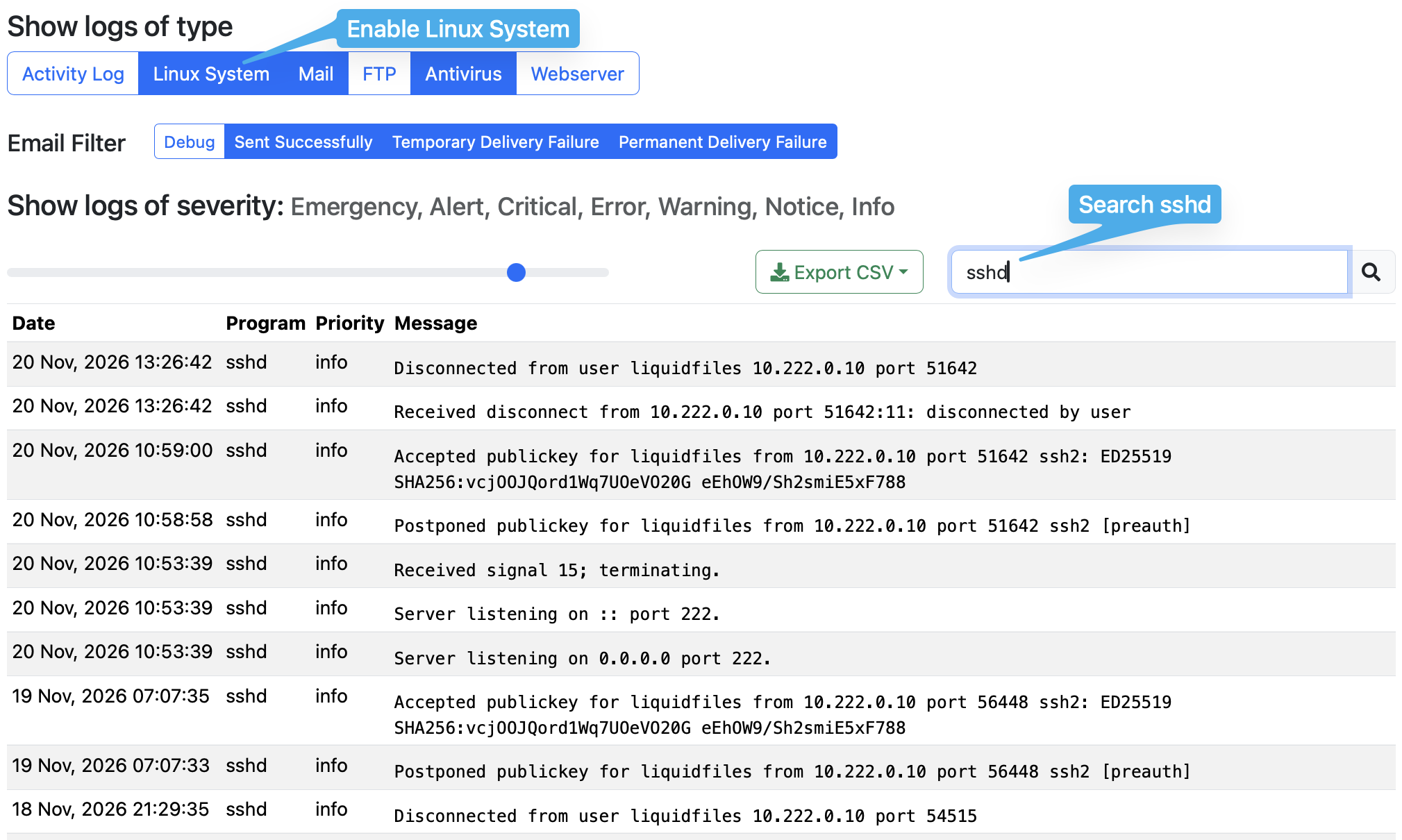
In the screeshot above, you can see successful SSH Admin logins from 10.222.0.10, using the liquidfiles user.
Always note the IP address in these log entries. It is the address the connection actually arrived from, which is not necessarily the address of your computer. If there's a NAT firewall, VPN or jump host between you and LiquidFiles, the address in the log will be the address of that device, and that's the address that the SSH Access Control list and the rate limit apply to.
Matching the Error Message
The error message in the SSH client narrows down where the connection stopped. PuTTY and OpenSSH word them differently:
| Error message | Most likely cause |
|---|---|
| PuTTY: Network error: Connection timed out OpenSSH: Connection timed out |
Nothing answered. Wrong address, or a firewall is dropping traffic to port 222. See Network Path and Firewalls. |
| PuTTY: Network error: Connection refused OpenSSH: Connection refused |
The connection was rejected before it reached the SSH server. Usually the SSH Admin Rate Limit, otherwise the wrong port or a firewall that rejects rather than drops. |
| PuTTY: Network error: Software caused connection abort or
Server unexpectedly closed network connection OpenSSH: kex_exchange_identification: Connection closed by remote host or Connection reset by peer |
The connection reached LiquidFiles and was closed straight away, before any login. Almost always SSH Access Control. |
| PuTTY: Couldn't agree a key exchange algorithm, … host key
algorithm or … cipher OpenSSH: no matching key exchange method found, no matching host key type found or no matching cipher found |
The SSH client is too old or has been configured to only use other algorithms. See Outdated SSH Client. |
| PuTTY: Server refused our key or No supported authentication methods
available (server sent: publickey) OpenSSH: Permission denied (publickey) |
The connection works but the login doesn't. Wrong username, or a key that isn't added or can't be used. See Username and SSH Keys. |
| Too many authentication failures | The client offered too many keys before the right one. See Too many authentication failures. |
| PuTTY: WARNING - POTENTIAL SECURITY BREACH! OpenSSH: REMOTE HOST IDENTIFICATION HAS CHANGED! |
The host key is different from the one your client saved last time. See Host Key Warnings. |
Wrong Port
SSH Admin access always uses TCP port 222. The standard SSH port 22 is used by FTPdrops and FTPdirs. If no FTPdrops or FTPdirs are configured, port 22 is closed and you will get Connection refused or Connection timed out. If they are configured, the FTPdrop server will answer and refuse the login. In PuTTY, check the Port field on the Session page, and with OpenSSH use ssh -p 222.
Network Path and Firewalls
If the connection times out, test whether port 222 can be reached at all from the computer you're connecting from. On Windows, in PowerShell:
Test-NetConnection liquidfiles.example.com -Port 222And on macOS or Linux:
nc -vz liquidfiles.example.com 222If the test fails, something between you and LiquidFiles is blocking port 222: a firewall in front of LiquidFiles, the firewall on your own network, a security group in AWS or a network security group in Azure. Please see Network & Firewall Connections for the ports LiquidFiles uses and Troubleshooting Network Connections for testing the network step by step.
SSH Access Control
In Admin → System → Console Access → SSH Access Control, you can restrict SSH Admin access to certain hosts and networks in the Allow Hosts field. When the field is empty, connections are accepted from any address. As soon as anything is entered, every connection from an address that isn't in the list is closed immediately, before the SSH client gets to log in.
In the System Log, this shows up as:
sshd: refused connect from 123.51.100.10 (123.51.100.10)
The SSH client reports this as Software caused connection abort (PuTTY) or Connection closed by remote host (OpenSSH), which can look like a network problem. It isn't: the connection reached LiquidFiles and LiquidFiles turned it away.
The most common way to end up here is that the list contains your internal networks, for instance 10.0.0.0/8, 172.16.0.0/12, 192.168.0.0/16, but the connection arrives from a different address: the public address of a NAT firewall, a VPN concentrator or a new jump host. To fix it, add the address from the refused connect from log entry to Allow Hosts and click Save Access Control. The change applies to the next connection, there's no need to restart anything.
Entries can be IP addresses, networks in CIDR notation (10.1.2.0/24) and IPv6 addresses, separated by commas or spaces. Changes to the list are logged in the Activity Log as System SSH access Updated, so if access stopped working without anyone knowing why, the Activity Log will tell you when the list was last changed.
SSH Admin Rate Limit
To slow down brute force attacks, LiquidFiles limits how many new connections to port 222 it accepts from each IPv4 address. The default is 5 connections within 300 seconds. When an address goes over the limit, further connections are rejected and the SSH client shows Connection refused. The setting is in Admin → System → Firewall & Brute Force Blockings → Configuration → SSH Admin.
A few things about this limit are not obvious:
- It counts connections, not failed logins. Successful logins count too, as do scp and sftp transfers, scripts and monitoring tools that connect to port 222, and port tests like the ones above.
- Every rejected attempt also counts and restarts the time window. If you keep retrying, you stay blocked. Stop trying for the full time window (5 minutes by default), and the next connection will be accepted.
- If several administrators, or an administrator and a monitoring tool, connect through the same NAT firewall, they all share the same limit as LiquidFiles sees them as a single address.
- Rejected connections are not logged in the System Log, so there will be no sshd entry for them.
- You can remove the limit by leaving either Hit Count or Seconds blank and clicking Save, but the default limit is applied again when LiquidFiles restarts. If you regularly need more connections, set a higher Hit Count instead, and restrict access with SSH Access Control.
IP Address Blocks
Addresses and networks added in Admin → System → Firewall & Brute Force Blockings → IP Address Blocks are blocked from every port on LiquidFiles, including the web interface. If you can reach the web interface from the same computer, this is not the cause. If you can't, check the list and remove the entry with the Remove button. The Web Blockings and FTP Blockings tabs don't affect SSH Admin access.
Outdated SSH Client
LiquidFiles only accepts current SSH algorithms: ECDSA host keys, ECDH or Diffie-Hellman group exchange (SHA-256) key exchange, the aes256-ctr cipher and SHA-2 MACs. These are the same with and without FIPS mode. Older clients that don't support them fail with Couldn't agree a key exchange algorithm or similar.
- PuTTY: please use version 0.75 or later. Earlier versions don't support SHA-2 signatures with RSA keys, and versions before 0.68 don't support ECDSA at all. Also check that the algorithm lists under Connection → SSH → Kex, Host keys and Cipher haven't been changed so that the required algorithms are below the warn below here line.
- OpenSSH: any version from the last several years works. If you get a no matching … found error, look for Ciphers, KexAlgorithms or HostKeyAlgorithms lines in ~/.ssh/config or /etc/ssh/ssh_config that restrict what the client offers.
- Other tools, such as older versions of WinSCP, SSH libraries in scripts and network management tools, often bundle their own SSH implementation and can fail even when PuTTY works. Update the tool, or test with PuTTY to compare.
Username and SSH Keys
If the connection is established but the login fails, check these in order:
- The username. It must be liquidfiles (or your chosen username in Azure). In PuTTY, enter it in Connection → Data → Auto-login username, or connect to liquidfiles@liquidfiles.example.com. Logging in as root, or with your own Windows or Active Directory username, is always refused.
- The public key is added to LiquidFiles. Go to Admin → System → Console Access → SSH Authorized Keys and check that the public key matching your private key is listed. Adding and removing keys is logged in the Activity Log.
- The client is using the right private key. In PuTTY, the key is set in Connection → SSH → Auth → Credentials → Private key file for authentication, and must be in PuTTY's own .ppk format — use PuTTYgen to convert an OpenSSH key. With OpenSSH, use ssh -i /path/to/private_key.
- The key type can be used. DSA (ssh-dss) keys are not accepted by current SSH servers. If FIPS mode is enabled, Ed25519 keys can't be used either, see Ed25519 keys and FIPS mode below. Use an RSA (3072 bits or more) or ECDSA key instead.
Password login is disabled, so a client that prompts for a password has not been given a key, or the key it offered was refused.
Ed25519 keys and FIPS mode
A LiquidFiles system with FIPS mode enabled does not support Ed25519 keys, as Ed25519 is not a FIPS-approved algorithm. If you added an Ed25519 key (one that starts with ssh-ed25519) in SSH Authorized Keys and FIPS mode was enabled afterwards, it's no longer possible to log in with that key. The key is still listed, and nothing else about the connection changes, so the only sign is that the login fails with Server refused our key in PuTTY or Permission denied (publickey) in OpenSSH.
To get SSH Admin access back, create a new ECDSA or RSA key and add it in Admin → System → Console Access → SSH Authorized Keys. You can do this from the web interface, so you don't need SSH access to fix it. With OpenSSH, create the key with:
ssh-keygen -t ecdsa -b 521In PuTTYgen, select ECDSA with the nistp521 curve, or RSA with 3072 or 4096 bits, before you click Generate. Once you've confirmed that you can log in with the new key, remove the Ed25519 key from the list.
From LiquidFiles v4.3.3:
- When FIPS mode is enabled, the SSH Authorized Keys tab marks each Ed25519 key with Can't log in: FIPS mode does not allow Ed25519 keys, and new Ed25519 keys can't be added.
- ft fips_enable lists any Ed25519 keys in SSH Authorized Keys before it enables FIPS mode, so you can add an ECDSA or RSA key first.
Too many authentication failures
The SSH server accepts a limited number of login attempts per connection, and every key the client offers counts as one. If you have many keys loaded in an SSH agent such as Pageant, ssh-agent or the 1Password SSH agent, the client can run out of attempts before it gets to the right key. Tell the client to only use the one key: in PuTTY, select the key in Credentials as above and tick Connection → SSH → Auth → Attempt authentication using Pageant off, and with OpenSSH use:
ssh -p 222 -i /path/to/private_key -o IdentitiesOnly=yes liquidfiles@liquidfiles.example.comHost Key Warnings
The first time you connect, your SSH client saves LiquidFiles' host key. If the key is different the next time, the client shows a warning and, depending on your settings, refuses to connect. This is expected after you've reinstalled or migrated LiquidFiles, or moved the hostname to a new system, as the new system has its own host key. If you know that's what happened, accept the new key in PuTTY, or remove the old one with ssh-keygen -R "[liquidfiles.example.com]:222" in OpenSSH. If nothing like that happened, find out why the key has changed before you connect.
Ed25519 messages with FIPS mode enabled
With FIPS mode enabled, you will see this in the System Log every time someone connects:
sshd: Ed25519 keys are not allowed in FIPS mode, skipping /etc/ssh/ssh_host_ed25519_key
This message is about LiquidFiles' own Ed25519 host key, and it's informational. LiquidFiles only ever offers its ECDSA host key, with or without FIPS mode, so the Ed25519 host key isn't needed. Look at the log entries that follow it for the actual reason. Your own SSH key is a different matter: if it's an Ed25519 key, it can't be used with FIPS mode, as described in Ed25519 keys and FIPS mode.
Contacting Support
If you still can't connect, please send the following to support@liquidfiles.com:
- The exact error message from the SSH client, or a screenshot of it.
- The sshd entries from Admin → System Log, with Linux System selected, from the time you tried to connect — or a note that there weren't any.
- The SSH client and version you're using.
- Whether the connection goes through a NAT firewall, VPN or jump host.